Adding APIs
When you are logged in to Swagger Catalog, you can view all the APIs you have access to – public and private, created by you and shared with you. If you are new to Swagger Catalog and have not created any APIs yet, the API list is empty. Your APIs appear in the list as you create them. Swagger allows you to add API definitions in multiple ways, including manual creation Swagger Catalog , importing existing definitions, or generating APIs from prompts or source code.
If you are a trial user, you cannot view any APIs because none are available by default. You must first create an API.
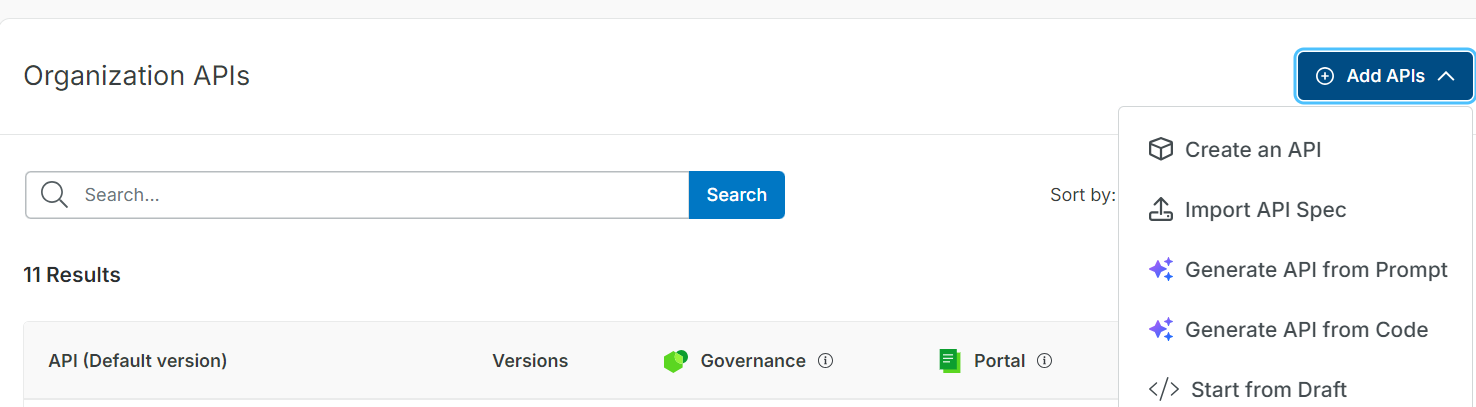
To add an API, do the following:
Note
The API specification list now includes two new types: Model Context Protocol (MCP) and Agent-to-Agent Protocol (A2A).
Click Add API.
Select the required option from the Add API list.
You are navigated to Swagger Studio .
In Swagger, you can Create an API, Import API Spec, Generate API from Prompt, Generate API from Code, Start from Draft from Swagger Studio.
For more information, refer to the Swagger Studio documentation for instructions on Creating an API, Generate API with AI, Import API Spec, and Start from Draft.
Click Create API to open the Swagger Studio Editor. After creating and saving an API in Swagger Studio Editor, click Swagger Catalog to return to the dashboard.
The APIs appear in the Swagger Catalog dashboard.
Note
Swagger now supports gRPC as a new API type. The imported API displays a gRPC badge. To view only gRPC APIs, filter by specification type. From Swagger Catalog you can open a gRPC API directly from the Studio editor or select Add to project option to add it to a project. See, Importing gRPC API Definitions for more information.
Click the Recents tab on the Swagger Catalog dashboard to view and access the APIs you have recently opened in Swagger Studio Editor. Removing the API from the Recents tab does not delete it or change it in Swagger Catalog.